
How to Change Your Apple App Store Country or Region
Change the country or region connected to your Apple Account to access apps that are not currently available in your App Store catalog.
Your App Store region is connected to your Apple Account and applies across devices using the same account.
What to prepare before switching region
Apple does not always allow an instant switch. Check the following requirements before you begin:
Zero Apple Account balance
You cannot change region while funds remain on the account.
No active subscriptions on this Apple Account
App Store, Apple Music, iCloud+, Apple Arcade, and other subscriptions must be cancelled. You may need to wait until the current subscription period ends.
No pending refunds or orders
Open refunds, pre-orders, rentals, or unresolved purchases may prevent the region change.
Leave Family Sharing if required
Family Sharing members may not be able to change their country or region independently.
Payment method for the new region or “None”
Some countries may offer “None” for free downloads. Paid apps and services may require a supported card, payment method, or gift card for that region.
Save a list of your active subscriptions and make sure your iPhone and Mac backups are current. Changing the region rarely affects app data, but cancelled subscriptions may need to be set up again.
How to change your App Store region on iPhone
Method 1 — Through Settings
Follow these five steps to change the country or region connected to your Apple Account.
- 1
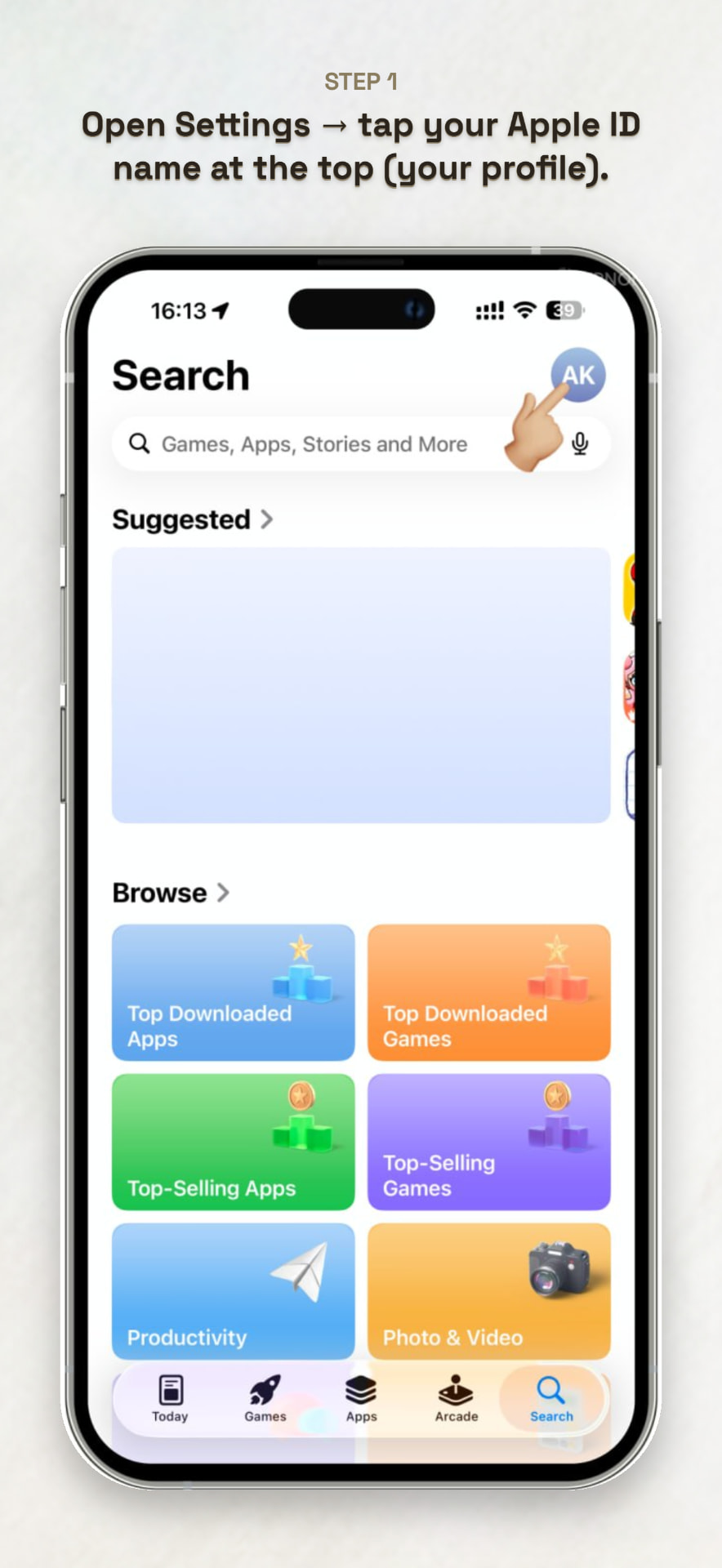
Open your Apple Account settings
Open Settings on your iPhone and tap your Apple Account name or profile at the top of the screen.
- 2
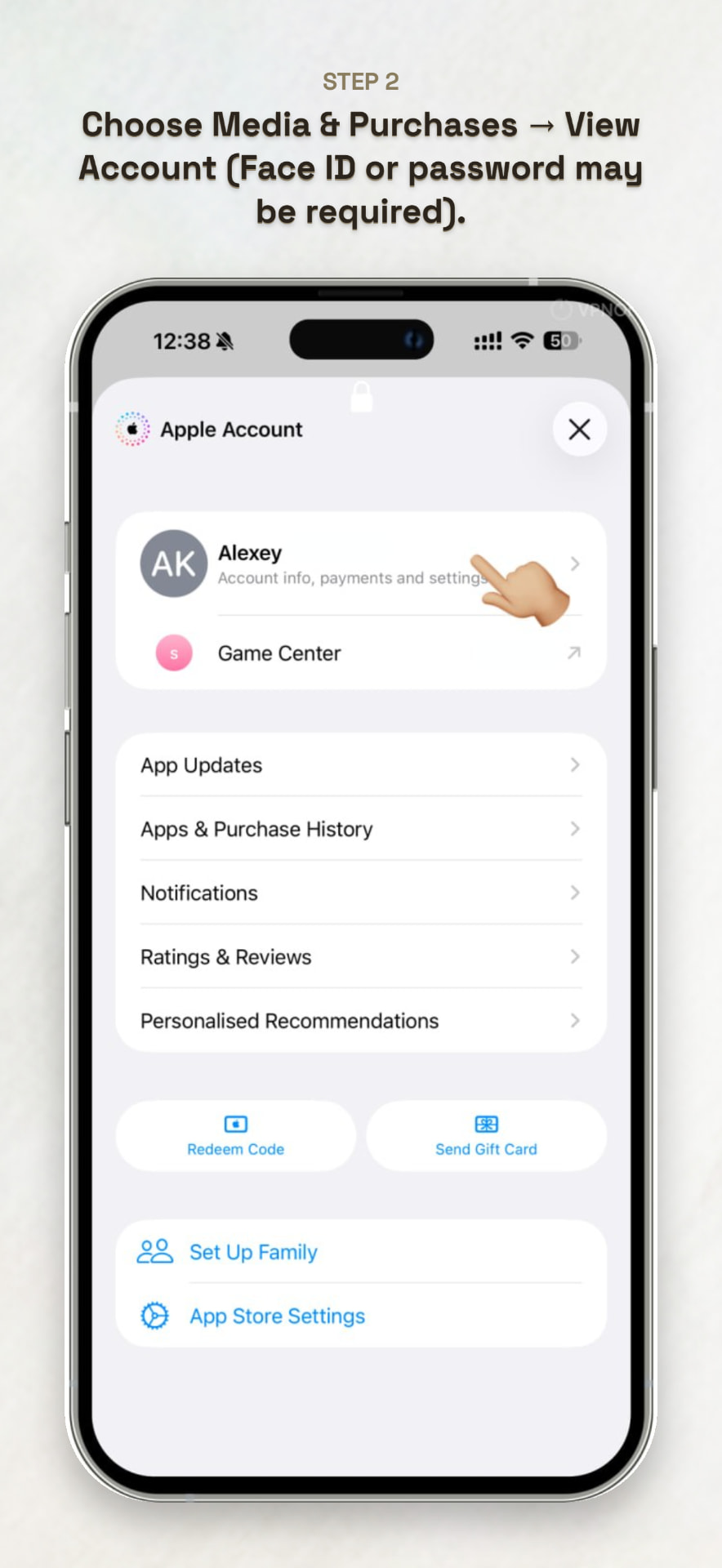
Open Media & Purchases
Tap Media & Purchases and then select View Account. Face ID, Touch ID, or your Apple Account password may be required.
- 3
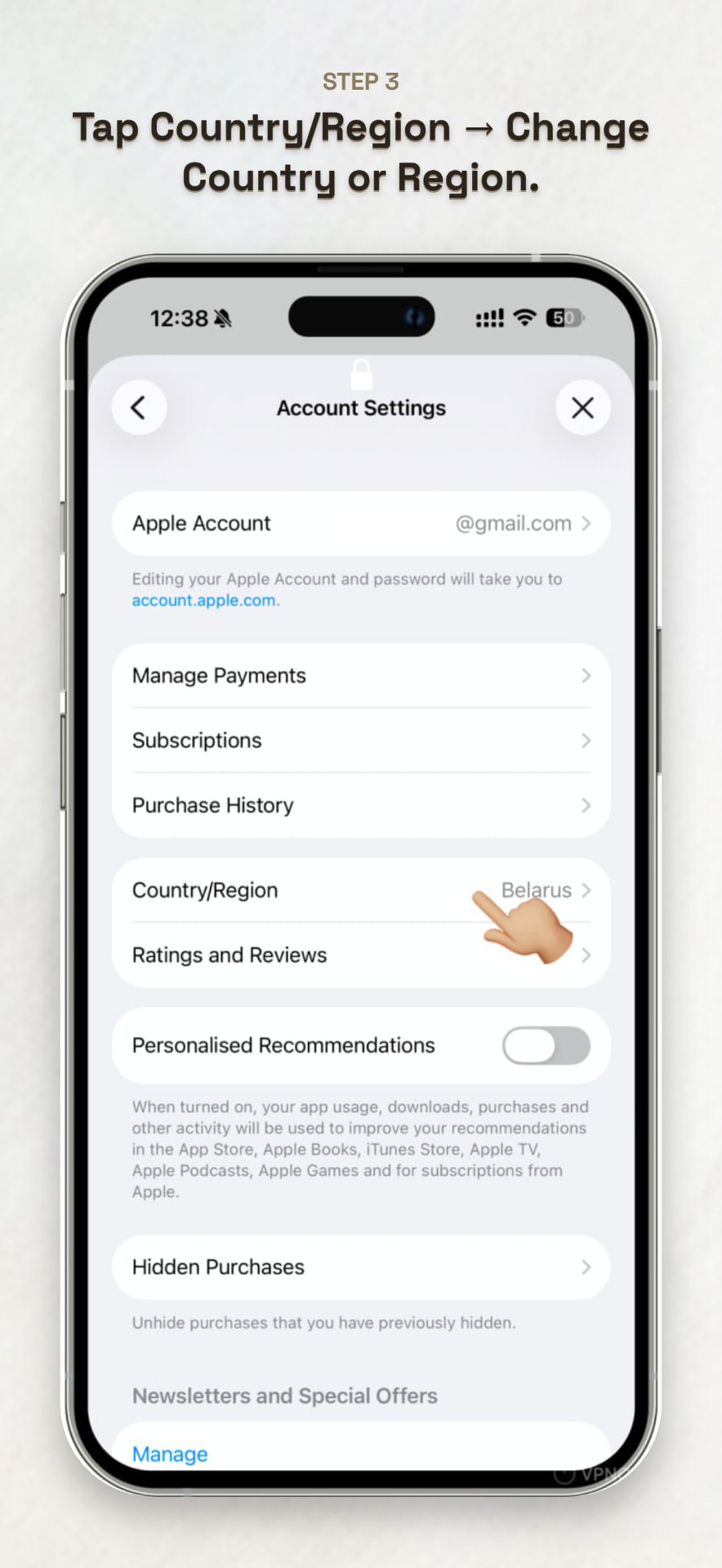
Open Country or Region
Select Country/Region and then tap Change Country or Region.
- 4
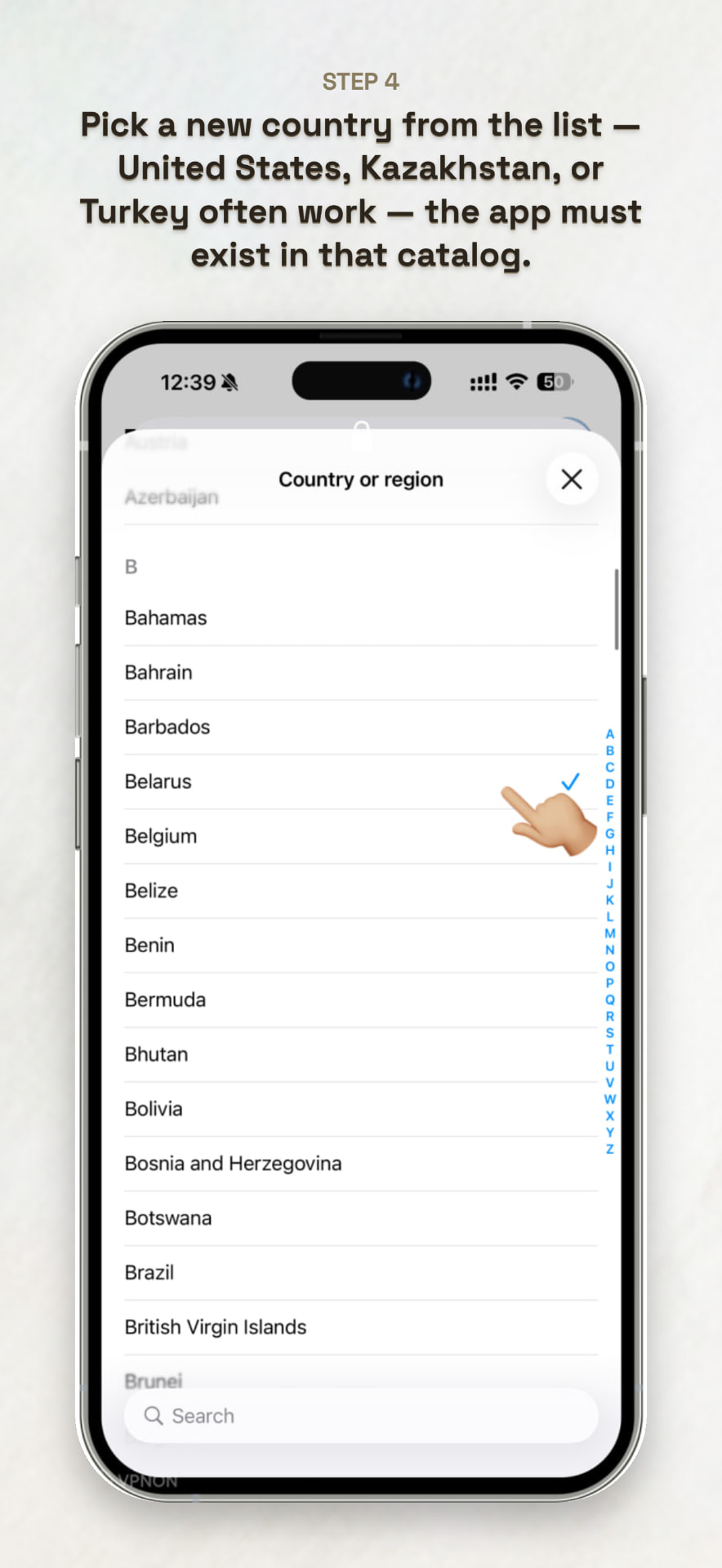
Choose a new country or region
Select a country where the app you want to download is available. The United States, Kazakhstan, or Türkiye may provide a different App Store catalog, but availability must be checked for the specific app.
- 5
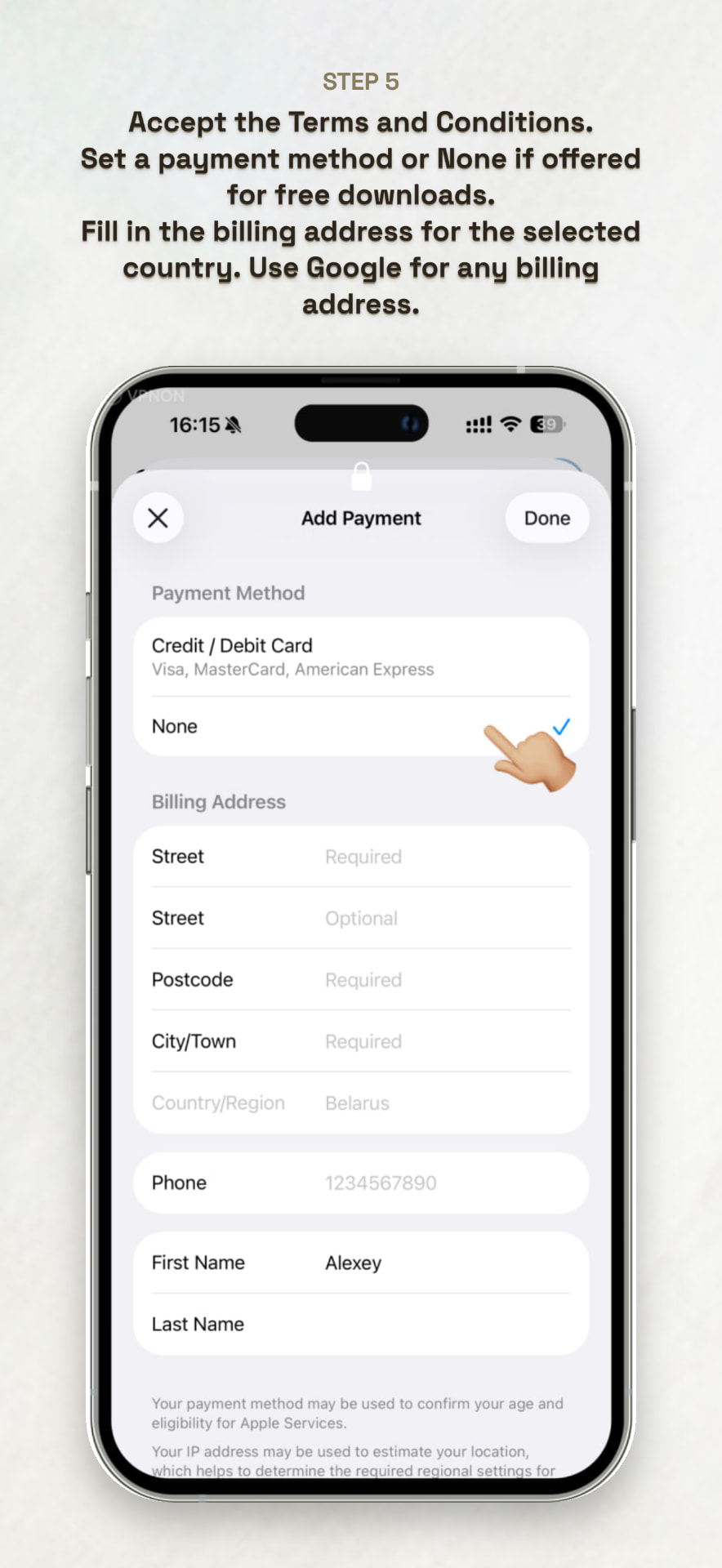
Confirm your payment and billing information
Accept Apple’s Terms and Conditions. Choose a supported payment method or select None when that option is available for free downloads. Enter valid billing information for the selected country or region and complete the form.
Save your changes and wait for the new region to apply. This usually takes around 1–2 minutes. The new App Store region will then sync with other devices using the same Apple Account.
Ready to use TocaVPN?
After changing your App Store region, reopen the App Store and search for TocaVPN.